









2027 IPPS Final Rule
Featured article
CMS published the final rule for Hospital Inpatient Quality Reporting and Medicare Promoting Interoperability programs for FY 2027.
MEDITECH's External Links utility lets you attach custom web URLs to standard application menus, giving users one-click access to DR-based reports, Power BI, or other web tools without leaving their workflow.
For many people in a hospital environment, using a PC for most of the day means navigating through MEDITECH applications and menus as part of the usual routine. Inevitably, none of us can do our job without a browser and the Internet. Fortunately for most MEDITECH users, there's a nifty utility built into MEDITECH that can be custom configured to make web URLs available right from your menu: External Links.
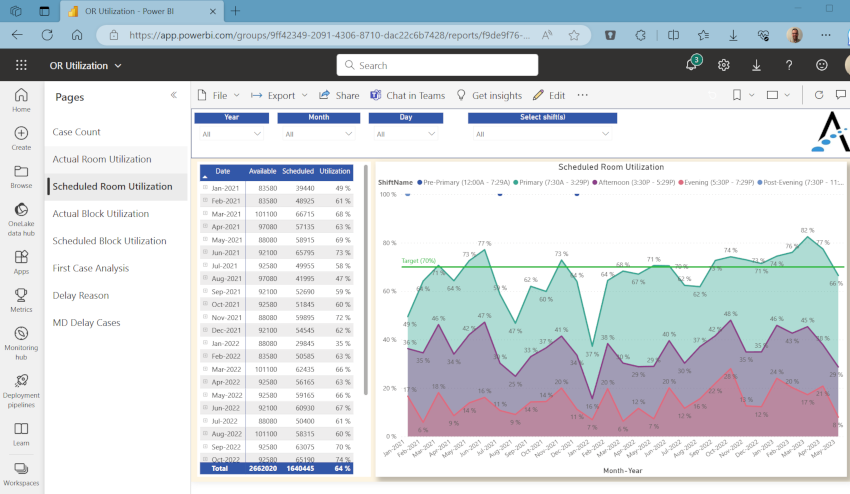
External Links let you add user-specific web links to standard menus in MEDITECH so websites from your intranet or the internet are a click away. External Links are really useful for linking to web-based reports that are relevant to the parent application menu in MEDITECH. For example, imagine you're using the Financial desktop and working with RVUs (relative value units). We've written many Data Repository-based custom reports that provide the detail and specific logic you sometimes need beyond a standard report, and by attaching a link directly to that custom report (in this case, using SQL Server Reporting Services' web portal), a Financial desktop user can easily run it in a new window while maintaining their place in MEDITECH.
While using External Links to run custom web-based reports from Data Repository is a common scenario, other uses include linking to other web-based applications your hospital may use (Power BI, BCA, etc.) or helpful reference and educational websites. You can also use External Links for web-based applications from MEDITECH, like their Web Acute Status Board or Web ED Physician Tracker.
Setting up External Links is pretty simple. It's a two-step process: first create a new link, then associate to a user or group.
To create a new link, from the Info Systems menu, select MIS, Dictionaries, Person/Profile, and External Link. At the Name prompt, enter a description of the website. At the Web Address prompt, enter the web address/URL.
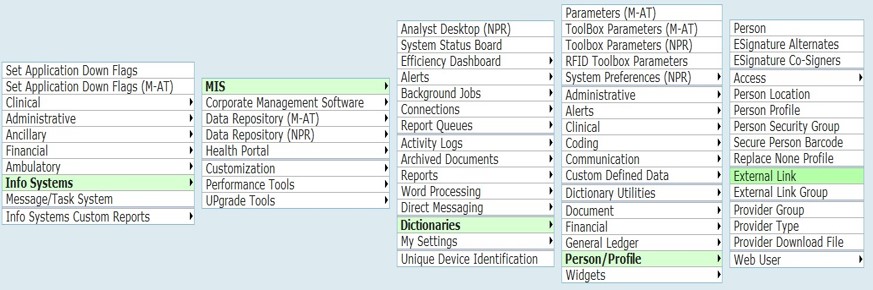
To associate the new link to a MEDITECH user or group, from the Info Systems menu, select MIS, Dictionaries, Person/Profile, select the Person or Person Profile, then select External, External Links. Finally select the link you wish that person to have available.
To use an External Link once they've been added, simply click the link icon on the lower-right corner of any MEDITECH screen.


External Links are configured to use your existing MEDITECH users and groups, so you can allow access easily for anyone who needs it. The same advantage applies to Data Repository and SQL Server Reporting Services too: it also uses your existing Active Directory (AD) groups and users to control who can see what. So if you follow best practices by creating AD groups to manage report and menu access, you can use those same groups.
If you haven't yet tried setting up External Links, we hope this blog helps you see their utility and ease of use.



.svg)