









2027 IPPS Final Rule
Featured article
CMS published the final rule for Hospital Inpatient Quality Reporting and Medicare Promoting Interoperability programs for FY 2027.
Data Repository's denormalized schema requires extra attention when building Power BI data models. Understanding your connectivity and modeling options is essential for effective reporting.
The fundamental challenge Data Repository presents to report developers and analysts is its somewhat denormalized schema. Just because it runs on SQL Server doesn't mean it's a relational database. DR is atypical in several ways: it lacks foreign key relationships; it has many data points stored in multiple locations; it has many NULL-valued fields. The schema design wasn't built to be relational or with an application front-end in mind. It was built to mirror the hierarchical file storage scheme that MEDITECH uses in its proprietary platforms (MAGIC, C/S and M-AT).
This can be a problem for Power BI Desktop and any software that expects you to connect to a relational source and discover an ideal table schema, with all relationships defined. We know DR doesn't work like that, so to effectively use Power BI Desktop and Report Builder, you have to do a bit more work when defining what's commonly referred to as your data model.
The first step in setting up your data model is establishing connections to data sources. Power BI Desktop offers two data connectivity options for working with SQL Server databases: Import and DirectQuery.
The Import option imports your data into PBI, where it's compressed and cached for near-instant presentation on reports and dashboards. This is the default option, and recommended for most cases, as it has an abundance of available data sources, lets you optionally use PBI's DAX (Data Analysis Expressions) language for advanced calculations and custom queries, and offers fantastic performance. The only limitation is the cached data size of 1GB, which doesn't sound large, but actually is, due to efficient compression.
The DirectQuery method gives you an alternative to the 1GB limitation and "point-in-time" nature of the import method. While it does offer real-time data access to larger datasets, it has its own limitations: performance is slower; limits some of the DAX functionality; and only allows a single data source per connection. For working with Data Repository, we recommend using the Import method for all but special-purpose reports.
At the heart of designing reports with Power BI Desktop is the data model. For many people, when you say "data model," you may be referring to a traditional star schema, where you simplify your data by defining tables as either fact or dimension tables, with the fact table at the center, and the dimension tables radiating outward. While this is one way to optimize reporting, with Power BI, there are other ways too.

After you've defined a new connection, you'll work with your model to define the relationships between tables, add custom fields and measures, and more. Tables in the Power BI model are any combination of fields presented from your defined connections, so you can have a simplified schema.
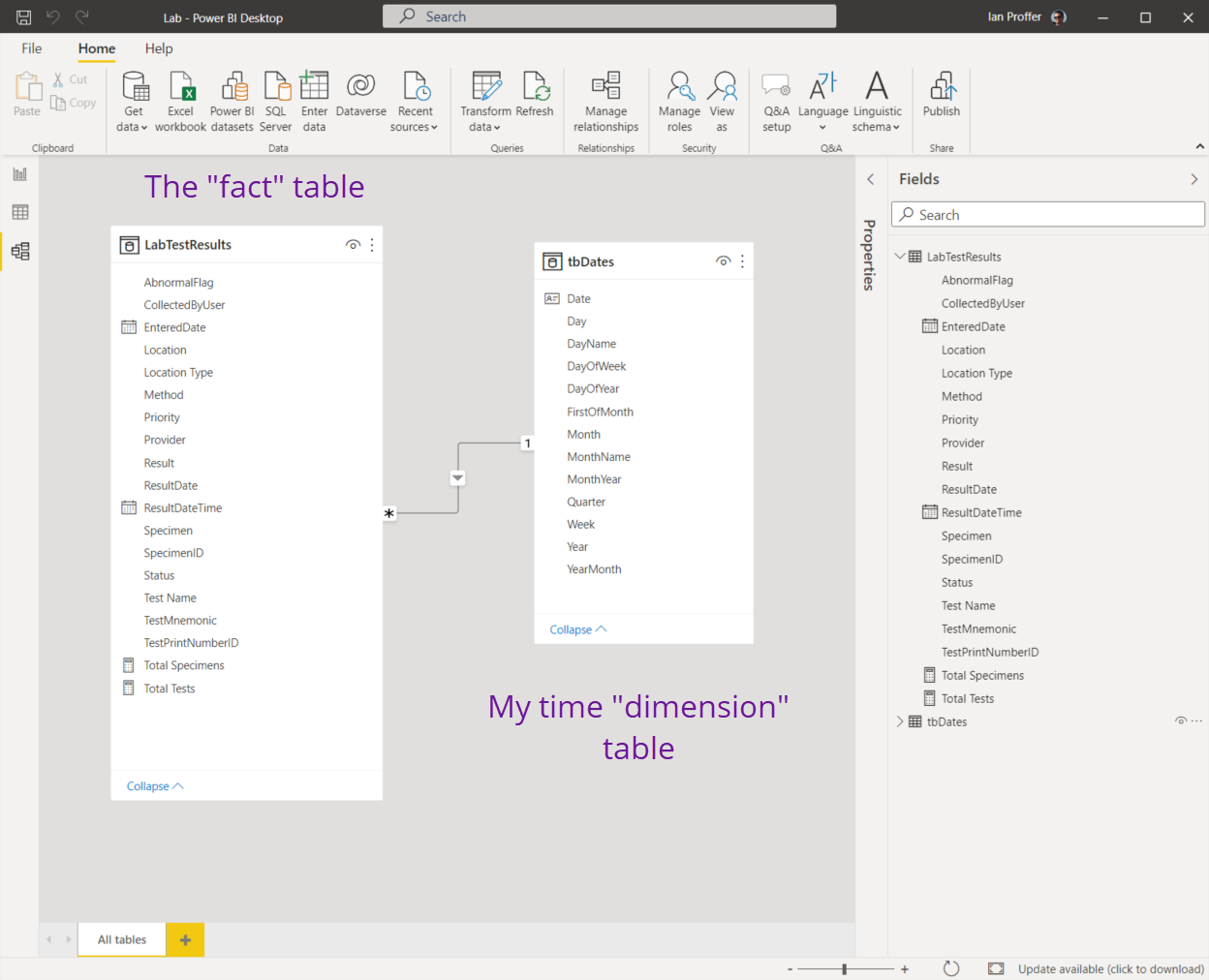
As a general recommendation for Data Repository-based data models, simpler models with a single fact table and perhaps a dimension table or two work very well and are easy to maintain.
We have always supported a simple approach to DR development: write T-SQL stored procedures to produce your data, and save them in a database on the DR server outside of MEDITECH's databases. With Power BI, our approach is unchanged: use stored procedures.
A more precise and better-performing approach than browsing tables: add the optional database name, expand the Advanced options and enter a TSQL command to execute a stored procedure you've already written. The benefits include easy modifications: if you decide to add something else to the dataset, you only have to modify the stored procedure, refresh your data in Power BI Desktop and you're off to the races.
Power BI integrates well with MEDITECH Data Repository. Explore the additional resources on the Power BI page and the first blog in this series.



.svg)